Siden er ikke tilgængelig på dit ønskede sprog. De tilgængelige sprog er nævnt nedenstående.
Reactivate your MitID in the MitID app
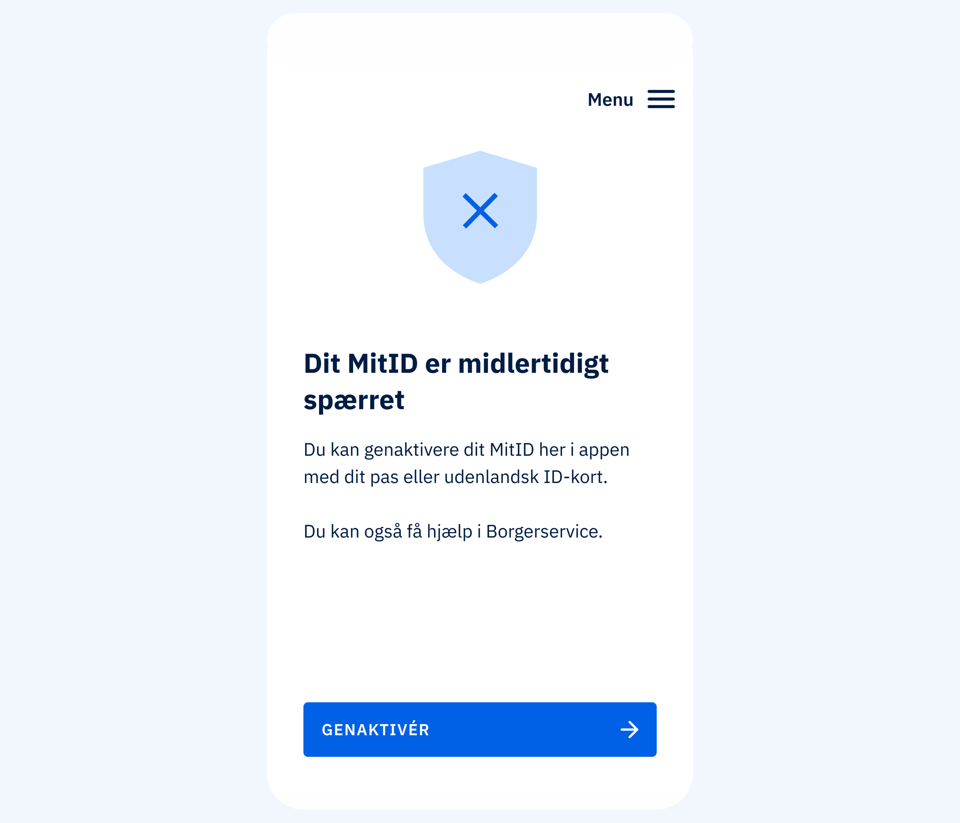
1. I have the MitID app
If you already have a phone with the MitID app on it, you can use it to unlock your temporarily blocked MitID again. You need to scan your passport/international ID card and your face with the MitID app to verify who you are and to unlock your MitID again.
How to do it – step by step
- Open your MitID app.
- Tap Reactivate on the 'Your MitID is temporarily blocked' screen.
- Tap Get started.
- Accept the Terms and Conditions and read the Privacy Policy.
- Choose the country of origin of your passport or international ID card and tap Next.
- If necessary, watch the video on how to scan your passport or ID card.
- Tap Scan the code.
- Scan the code in your passport/international ID card. When the phone vibrates and shows a check mark, the scan is complete.
- If necessary, watch the video on how to read the chip in your passport or ID card.
- Tap Scan the chip.
- Place your phone on top of your passport/ID card and read the chip. When the chip is read, it will say 'Scanning chip'. When the phone vibrates and shows a check mark, the scan is complete.
- Watch the video on how to scan your face.
- Tap Scan your face.
- Hold your phone up to your face so that it fits in the frame. Tap I'm ready and follow the instructions in the app.
- The scan is complete when you see the text 'Confirming your identity'.
- Choose whether you want to change your user ID on the 'You should change your user ID' screen.
- If you would like to change your user ID, select Change user ID and enter a new user ID.
- If you do not want to change your user ID, select Keep your current user ID.
- Tap Reactivate.
Video guide: Tips and tricks for scanning passports and face in the MitID app (English subtitles) (5:27)
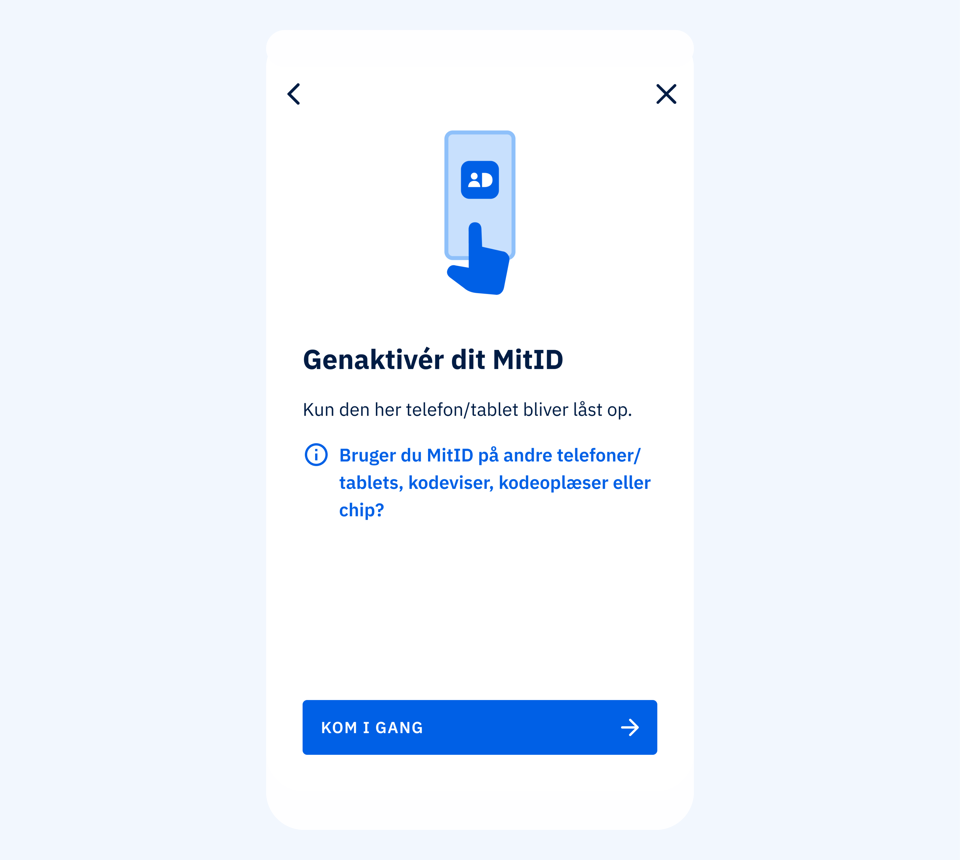
2. I have the MitID app, but there are multiple users in the app
If you already have a phone with the MitID app on it, and there are multiple users in the app, you can use it to unlock your temporarily blocked MitID again. You need to scan your passport/international ID card and face with the MitID app to confirm who you are and unlock your MitID again.
How to do it - step by step
- Open your MitID app.
- Tap Menu at the top right of the screen.
- Tap App settings and Users in the app.
- Tap View users and then select your user
- Tap Reactivate on the 'Your MitID is temporarily blocked' screen.
- Tap Get started.
- Accept the Terms and Conditions and read the Privacy Policy.
- Choose the country of origin of your passport or international ID card and tap Next.
- If necessary, watch the video on how to scan your passport or ID card.
- Tap Scan the code.
- Scan the code in your passport/international ID card. When the phone vibrates and shows a check mark, the scan is complete.
- If necessary, watch the video on how to read the chip in your passport or ID card.
- Tap Scan the chip.
- Place your phone on top of your passport/ID card and read the chip. When the chip is read, it will say 'Scanning chip'. When the phone vibrates and shows a check mark, the scan is complete.
- Watch the video on how to scan your face.
- Tap Scan your face.
- Hold your phone up to your face so that it fits in the frame. Tap I'm ready and follow the instructions in the app.
- The scan is complete when you see the text 'Confirming your identity'.
- Choose whether you want to change your user ID on the 'You should change your user ID' screen.
- If you would like to change your user ID, select Change user ID and enter a new user ID.
- If you do not want to change your user ID, select Keep your current user ID.
- Tap Reactivate.
- Your MitID app is now reactivated, and you can start using it.
Video guide: Tips and tricks for scanning passports and face in the MitID app (English subtitles) (5:27)
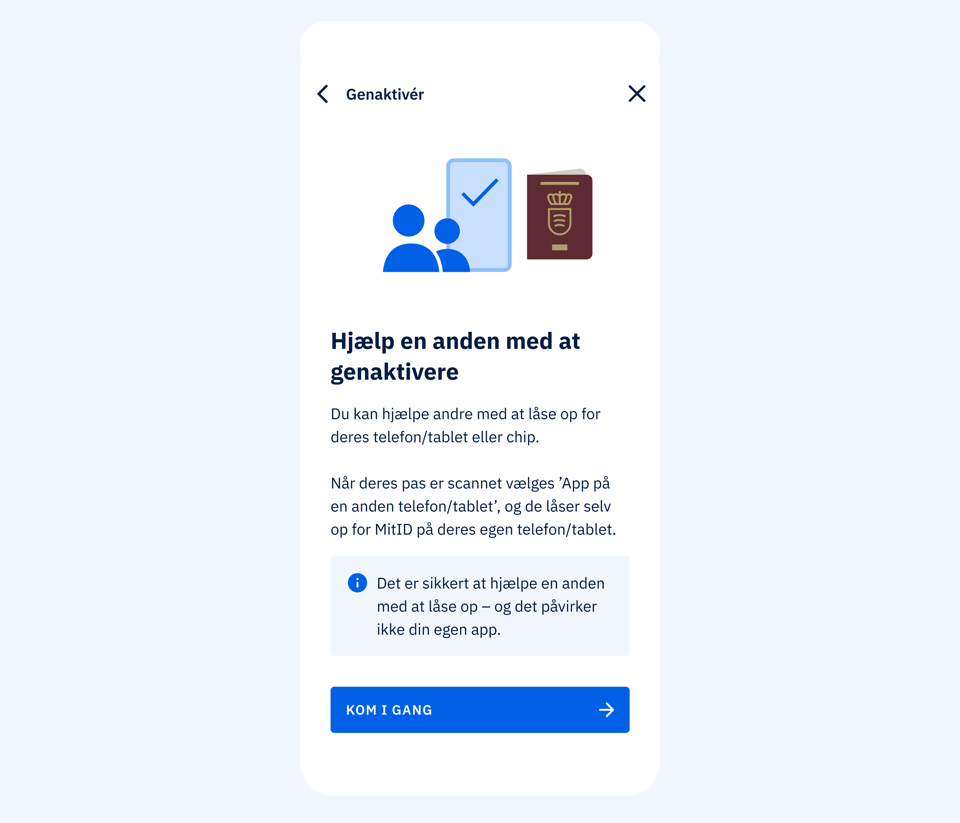
3. I don't have the MitID app, but can get help from someone with the app
If you do not have a phone with the MitID app on it, you can get help to unlock your MitID again from, for example, a family member, colleague or friend who has the MitID app. You will need your passport or foreign ID card. The person helping you will not have access to your MitID.
How to do it - step by step
- Open your MitID app.
- Tap Menu at the top right of the screen.
- Tap Activate and block.
-
Tap Reactivate.
-
Tap Help someone else to reactivate.
- Tap Get started.
- Accept the Terms and Conditions and read the Privacy Policy.
- Choose the country of origin of your passport or international ID card and tap Next.
- If necessary, watch the video on how to scan your passport or ID card.
- Tap Scan the code.
- Scan the code in your passport/international ID card. When the phone vibrates and shows a check mark, the scan is complete.
- If necessary, watch the video on how to read the chip in your passport or ID card.
- Tap Scan the chip.
- Place your phone on top of your passport/ID card and read the chip. When the chip is read, it will say 'Scanning chip'. When the phone vibrates and shows a check mark, the scan is complete.
- Watch the video on how to scan your face.
- Tap Scan your face.
- Hold your phone up to your face so that it fits in the frame. Tap I'm ready and follow the instructions in the app.
- The scan is complete when you see the text 'Confirming your identity'.
- Choose whether you want to change your user ID on the 'You should change your user ID' screen.
- If you would like to change your user ID, select Change user ID and enter a new user ID.
- If you do not want to change your user ID, select Keep your current user ID.
- Tap Reactivate.
- Select Code display, audio code reader or chip and press Next.
Note: If you select App on another phone/tablet instead of Code display, audio code reader or chip, you can read more about how to activate it under the item '2) Activate the MitID app on another phone/tablet'. - Scroll down and select the device you want to order/activate. For example, press Select code display.
- You will now see the text 'Do you have a code display?'. Press No, order. You can't reuse an old code display.
Note that if you need to activate a MitID chip, you must follow these instructions. - Follow the steps on the screen to order a code display, which you will subsequently receive by mail along with instructions on how to activate it.
Video guide: Tips and tricks for scanning passports and face in the MitID app (English subtitles) (5:27)

4. I need a new MitID app, e.g. because I got a new phone
If you don't already have the MitID app because your phone/tablet with the old MitID app:
- Has been stolen, lost or otherwise misplaced.
- Is present but you have deleted the MitID app.
then you must follow the instructions below on the phone that needs a new MitID app.
How to do it - step by step
- Download the MitID app from the Danish Agency for Digital Government in the Apple App Store or in the Google Play.
- Open the MitID app.
- Tap Get started.
- Choose Passport/ID card and tap Next. Open your MitID app.
- Accept the Terms and Conditions and read the Privacy Policy.
- Choose the country of origin of your passport or international ID card and tap Next.
- If necessary, watch the video on how to scan your passport or ID card.
- Tap Scan the code.
- Scan the code in your passport/international ID card. When the phone vibrates and shows a check mark, the scan is complete.
- If necessary, watch the video on how to read the chip in your passport or ID card.
- Tap Scan the chip.
- Place your phone on top of your passport/ID card and read the chip. When the chip is read, it will say 'Scanning chip'. When the phone vibrates and shows a check mark, the scan is complete.
- Watch the video on how to scan your face.
- Tap Scan your face.
- Hold your phone up to your face so that it fits in the frame. Tap I'm ready and follow the instructions in the app.
- The scan is complete when you see the text 'Confirming your identity'.
- Choose whether you want to change your user ID on the 'You should change your user ID' screen.
- If you would like to change your user ID, select Change user ID and enter a new user ID.
- If you do not want to change your user ID, select Keep your current user ID.
- Tap Reactivate.
- Select On this phone on the screen "How do you want to authenticate with MitID?". If you want to use MitID on another phone or with a MitID code display, audio code reader or chip in the future, you can read more about how to do it here: Activate or order MitID.
- Enter the temporary PIN code you receive via SMS. It may take up to 2 minutes.
- Tap Next on the screen ‘Choose your personal PIN code’.
- Enter your personal PIN code.
- Repeat the PIN code and tap Next.
- Choose whether you want to use biometrics (Fingerprint/Touch ID/Face ID) for future authentications with the MitID app.
- Tap Set up notifications and then Allow.
- Your MitID app is now activated and ready to use. Tap Next.
- Tap Next on the screen ‘How to use the MitID app’.
- Tap Next on the screen ‘How to authenticate’.
- Tap Start using the app on the screen ‘Be aware of ...’.
- Your MitID app is now reactivated, and you can start using it.
Video guide: Tips and tricks for scanning passports and face in the MitID app (English subtitles) (5:27).